CMS Lap Timer

device setup | app guide | quantum | support


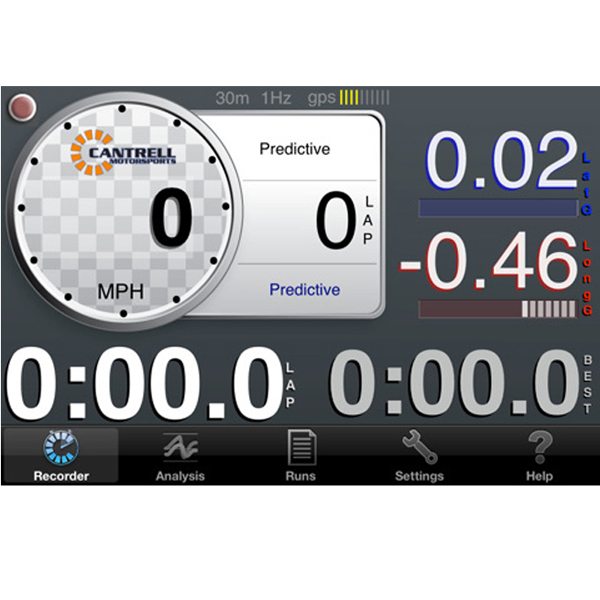
For the amateur racecar driver or motorcycle rider. Use CMS Lap Timer to calculate real-time lap times as you drive around a track.

No setup required.

Can be used with external hardware to create a complete racing data acquisition system.

CMS Lap Timer is produced exclusively for Cantrell Motorsports, Inc. by MaxQData, LLC.

Supported Devices & Accessories

For the iPod Touch and first generation iPhone, the use of an external GPS module is required since these devices do not have built-in GPS capabilities. See the MaxQData Quantum section for details.

Due to iPhone built-in GPS limitations, the computed lap times may suffer from inaccuracy. However, by using an external high performance GPS now available from MaxQData, with either an iPhone or an iPod Touch you can achieve high levels of accuracy. See the MaxQData Quantum section for details. When used standalone on an iPhone 3G or 3GS, CMS Lap Timer is for demonstration purposes only.

Device Setup

Mount the iPhone/iPod securely; below are some suggested mounts:

You may also try some low cost mounting alternatives, such as:

When using an iPhone 3G(S) standalone, the iPhone needs to be mounted in a position such that it can receive a strong GPS signal; somewhere on the dash or windshield are good positions.

The iPhone/iPod may be positioned vertically or horizontally. It should be reasonably level horizontally and vertically, and face toward the back of the vehicle. If you do not need to see the screen, the iPhone/iPod may also be mount flat; screen facing up and top facing the front of the vehicle.

The iPhone mounting position is not critical; "eye ball" accurate is fine since the positioning only affects the acclerometer (g forces) display; the accelerometers are not used to compute lap times.

The use of a power adaptor is highly recommend; otherwise, you might find yourself with a dead battery and without the use of your phone after a couple of hours of lap timing.

App Guide

After starting, CMS Lap Timer displays the Timer screen, and an "Acquiring Location" message is displayed until the iPhone locks onto a GPS signal. Once a GPS signal is acquired the CMS Lap Timer is ready, and lapping may be started without further interaction with the application.

CMS Lap Timer saves lap times within Sessions; each session starts when the vehicle exceeds 20MPH and ends when either the vehicle is moving slowly for approximately a minute, or when the main screen is switched away from the Timer screen, or when CMS Lap Timer is closed, or when the iPhone is turned off.

Sessions are listed in the Sessions screen. You can enter notes for each session on the Session Details screen for each session; to reach this screen, tap on a session on the Sessions screen. You can email a session's notes and lap times from the Sessions Details screen.

Lap times can be sent as Tweets to a Twitter account in real time (assuming the phone has access to the carrier's network). Twitter account login settings can be set and found in the Settings screen.

MaxQData Quantum

Get professional results with CMS Lap Timer by adding the MaxQData MQGPS-Quantum data acquisition module. The MQGPS-Quantum provides:

  • Dramatically improved accuracy and detail compared to the iPhone built-in GPS
  • Connects to the iPhone/iPod via WiFi to show lap times
  • Records as much as 120 hours of data, including track maps, lap times, speed, lateral and longitudinal acceleration, and more
  • Download the data to a PC for analysis using free MaxQData software.

For the iPod Touch and first generation iPhone, the use of a MaxQData MQGPS-Quantum is required since these devices do not have built-in GPS capabilities.

More information about the MQGPS-Quantum is available here. To purchase a MQGPS-Quantum, please call Cantrell Motorsports at (425) 820-0231 or purchase on-line here.

Settings

The Settings screen allows you to change:

  • Twitter login information
  • Quantum settings

Twitter

Lap times can be optionally sent as Tweets to a Twitter account. To enable this feature, turn on Send Tweets and enter the Twitter login credentials. Be sure to tap on Validate Credentials to confirm account access.

This feature is available on the iPhone only.

Quantum

To enable a Quantum, follow the steps below:

    1. Turn Quantum on
    2. In the IP Address field, enter the address of the Quantum, which is 169.254.1.1 (unless instructed otherwise by MaxQData)
    3. In the IP Port Number field, enter 2000 (unless instructed otherwise by MaxQData)
    4. Tap on the Timer tab and confirm that the Quantum Status Box is displayed and that you see both the flashing blue status light and the battery meter.

Refer to the MQGPS-Quantumâ„¢ WiFi Edition for the iPhone/iPod Touch Guide for the complete setup and settings information.

Support

Credits

Includes MGTwitterEngine code by Matt Gemmell (http://mattgemmell.com/).


Copyright © MaxQData, LLC. MaxQData, and the MaxQData logo are trademarks of MaxQData, LLC. Other trademarks are the property of their respective owners.
site by
Pete Stoppani Consulting